



Table of Contents
- 1 Introduction
- 2 Quick buyer profile and our straight verdict
- 3 Don’t buy blindly — check these top cooling pad options that really help!
- 4 First 30 days setup and simple cooling pad maintenance checklist!
- 5 Don’t Make These Mistakes to Feel Heavy Regret Later!
- 6 Airflow & Speed — What Really Cools Your Laptop!
- 7 Conclusion
- 8 FAQ
Introduction
What’s wrong with my laptop? Why is it getting so hot these days? I just opened a few tabs, yet it feels like a mini heater under my hands. Many of us feel the same problem while using the laptop. That heat you ignore today could slowly hurt your laptop’s battery, screen and even motherboard.
A few minutes of reading this can save you from spending thousands later. Sometimes, just a small thing like a best laptop cooling pad can save a laptop worth lakhs. It’s not about looks, it’s about life.
In this guide, we’ll talk about why laptops overheat, how it silently reduces their age, what buyers often do wrong and how you can fix it easily. Just stay with us for a few minutes — you’ll learn how to protect, maintain and make your laptop feel young again.
Quick buyer profile and our straight verdict
Who needs an active cooling pad?
If you play long games, you need extra cooling. Gamers often push the CPU and GPU hard and chips get hot, so a gaming cooling pad helps keep speed high. Content creators who edit video or render files also need it because heavy apps make heat fast. People who do heavy multitasking with rear exhaust vents, need airflow help. Also use one if you put a laptop on a bed or your lap — soft surfaces block vents. This small tool keeps the laptop cooler, keeps performance steady and may add years to the device.
Who might avoid it?
If you only do light work like web browsing, watching videos or typing notes, you may not need an active cooling pad. Same if your laptop runs very cool by design and you prefer total quiet — some high power pads make noise. Studios or audio rooms that need zero sound may skip them. Also, if you always work on a hard desk with good airflow, a pad may not add much. Check your use: heat tests and short runs will show if a pad really helps you or not.
Short recommendation framework
Pick a pad based on how hot your laptop gets and where you use it. Peltier coolers suit extreme temps — they move heat fast but use more power and are for serious hot spots. Multi fan pads spread airflow across the whole base — best for general use and content work. Monster turbofan or large single fan units push strong air for high frame gaming and bigger laptops. Match tech to your need: extreme cooling for heavy rigs, multi fan for mixed use and a big fan for airflow first gamers.
Don’t buy blindly — check these top cooling pad options that really help!
SpinBot Airflow X20

SpinBot Airflow X20 is made for people who work, game, or study for long hours and often feel their laptop heating up fast. It is not just a fan pad, it’s a complete adjustable height laptop cooler built for comfort and lasting use. The strong metal mesh with 6 high speed fans runs between 1800 to 2400 RPM and pushes 102.56 CFM of airflow which means your laptop gets constant fresh air and your CPU and GPU stay cool even during heavy gaming or editing.
What makes it stand out is how silent it is – just 28.2 dB. You can use it late at night, attend meetings or study quietly without fan noise disturbing you. The 7 RGB light modes give a nice glow for both gaming setups and study tables – not too bright, not dull.
It has 8 level height adjustment which gives you the perfect typing and viewing angle. This small but an important feature reduces back and neck pain. You also get 2 USB ports, so you don’t lose connection options while using it.
Made from tough ABS plastic with a strong frame, it supports laptops up to 17.3 inches easily. If you’re serious about laptop temperature control, this one does it fast, safely and quietly. Overall, SpinBot Airflow X20 gives great cooling, comfort and sense of relief — all in one solid pad.
| Specifications | |
|---|---|
| ❄️ Number of Fans | 6 High-Speed Cooling Fans |
| ⚙️ Fan Speed Range | 1800 – 2400 RPM |
| 🌬️ Airflow Capacity | 102.56 CFM |
| 🔇 Noise Level | 28.2 dB (Ultra-Low Noise) |
| 💡 RGB Lighting Modes | 7 Dynamic RGB Modes |
| 📏 Height Adjustment Levels | 8 Adjustable Angles |
| 💻 Laptop Compatibility | Supports Laptops up to 17.3 Inches |
| 🏗️ Build Material | Metal Mesh + ABS Plastic Frame |
| 🔌 USB Ports | Dual USB 2.0 Ports (for extra device connectivity) |
| 🌈 Special Features | Silent Operation, Ergonomic Design, and High Airflow Cooling Efficiency |
| 🛡️ Warranty | 1 Year |
| Check Latest Price | |
| 👉 If today’s price feels good, grab it — you’ll thank yourself later!If not – no stress dear incredible you — just add it to your cart and check back soon. The best deals always find their way back to you. | |
| Note: Specs may vary — please check the retailer’s site before buying. | |
| Disclosure: As an Amazon Associate, we earn from qualifying purchases. If you buy through our links, we may earn a commission at no extra cost to you. | |
EvoFox Blizzard 2 Xtreme
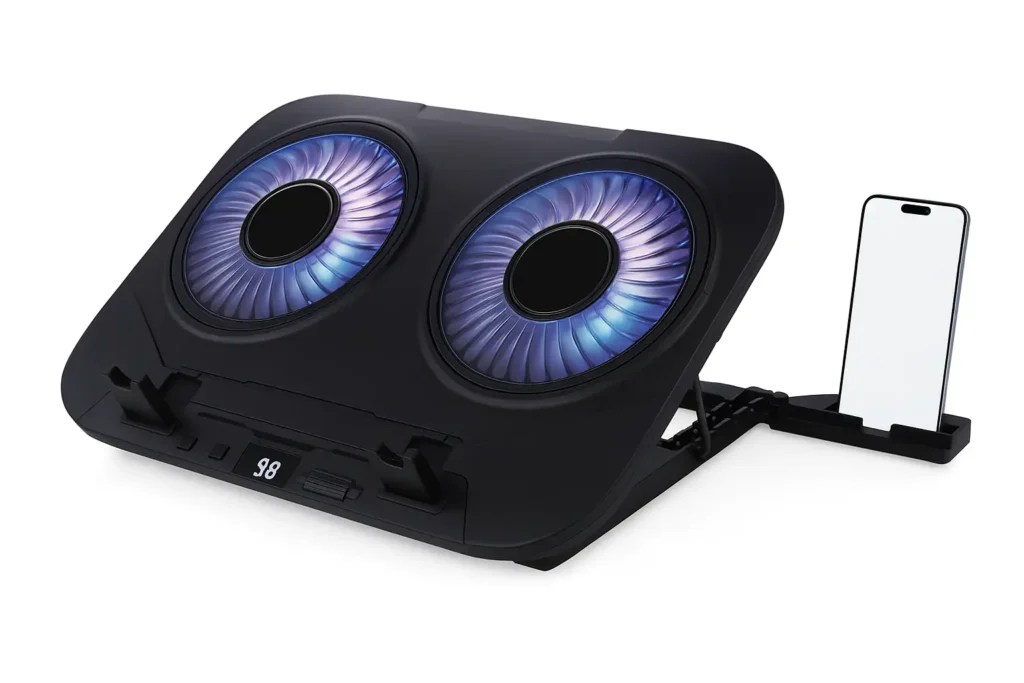
EvoFox Blizzard 2 Xtreme is a heavy duty cooling pad made for people who run big games, edit video or render files for hours. It fits large laptops up to 17 inches and gives two 140mm high speed fans that move strong air under the laptop. The pad adds dual Peltier semiconductor plates — these are special cooling chips that pull heat away faster than fans alone. The mix of fans and Peltier plates helps to reduce laptop heating and keeps CPU and GPU temps lower during long sessions.
You control fan speed with an easy roller and see numbers on the bright digital display. This helps you pick light cooling for study or heavy colling for gaming. The unit runs from USB and uses low power so it plugs into your laptop or a power bank. The build uses metal and silicone pads so the laptop sits steady and does not slide while you type or play.
The Blizzard 2 Xtreme has an ergonomic 5 level stand to set the best typing and viewing angle. This reduces neck strain and also improves airflow at higher tilt. A foldable phone holder keeps your phone in view, and 10 RGB light modes give a cool look for night setups. The smart power – only USB extender keeps your other ports free.
Peltier tech works best for hot spots but needs good airflow and some power. The Blizzard gives clear control, strong cooling and a firm base. If you need fast heat drop and steady laptop temperature control for gaming or pro work, this pad blends raw cooling tech with daily comfort and solid build quality.
| Specifications | |
|---|---|
| ❄️ Cooling Technology | Dual Peltier Semiconductor Cooling Plates |
| 💨 Number of Fans | 2 High-Speed 140mm Fans |
| ⚙️ Fan Control & Display | Smart Digital Display with Roller Speed Control |
| 💡 RGB Lighting Modes | 10 Dynamic RGB Effects |
| 📏 Height Adjustment Levels | 5 Ergonomic Adjustable Angles |
| 💻 Laptop Compatibility | Supports Laptops up to 17 Inches |
| 🏗️ Build Material | Transparent Shatterproof Shell with Metal + Silicone Frame |
| 📱 Phone Holder | Integrated Foldable Phone Stand |
| 🔌 Power Input | USB Powered (5V, 15W Consumption) |
| 🌈 Special Features | Peltier Cooling Tech, Silent Operation, Anti-Slip Pads, and USB Extender Port |
| 🛡️ Warranty | 1 Year |
| Check Latest Price | |
| 👉 If today’s price feels good, grab it — you’ll thank yourself later! If not – no stress dear incredible you — just add it to your cart and check back soon. The best deals always find their way back to you. | |
| Note: Specs may vary — please check the retailer’s site before buying. | |
| Disclosure: As an Amazon Associate, we earn from qualifying purchases. If you buy through our links, we may earn a commission at no extra cost to you. | |
Llano V12
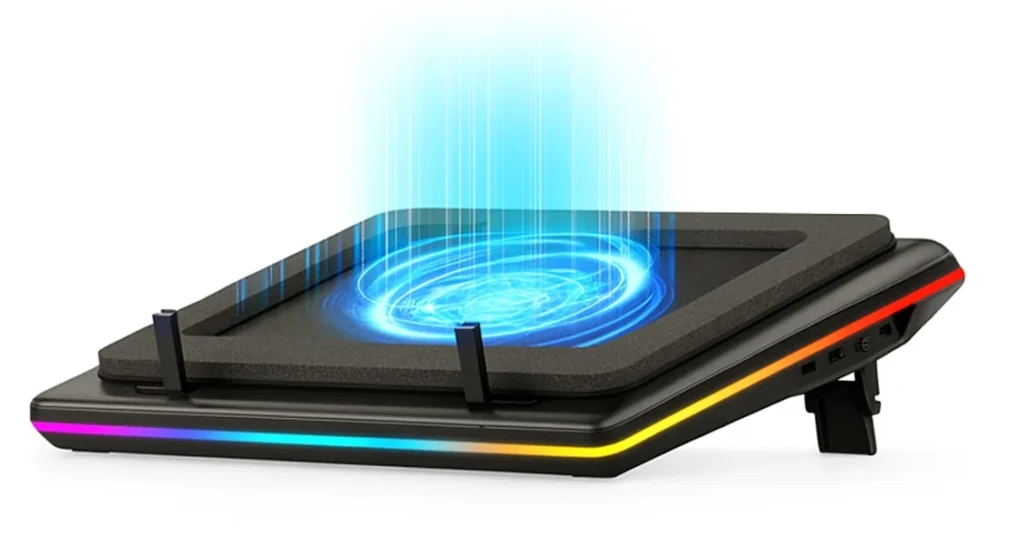
Llano V12 is also made for gamers, creators and heavy users who need quick cool down. It uses one large 5.5 inch turbofan that moves air in 360 degrees. The fan and sealed foam make airflow steady and fast. This helps reduce laptop heating so your laptop gets cool in seconds during long gaming or editing. The cooler has a clear HD LED screen and touch keys. You can see fan speed and change it with a light touch. You also change RGB lights and save your last setting with memory.
The unit gives 36W power and stays quiet when you pick the right speed. Use low speed for study and higher speed for gaming. The built in dust filter keeps the fan clean and working long. A 1 in 3 out USB hub lets you plug a keyboard, mouse or phone without losing laptop ports. Non slip baffles stop the laptop from sliding when you tilt the pad. Adjustable height helps your neck and makes typing easy.
It fits large laptops from 15.6 to 21 inches and uses tough ABS metal with a memory foam seal for better contact. The touch mute button cuts noise fast when you need silence. Ten RGB modes add night style and the visual display makes control simple. Setup is easy — plug the adapter, place the laptop and choose fan speed. It works on desk or lap but works best on a flat hard surface.
For students and freelancers it reduces slowdowns and gives longer sessions. This pad feels like a durable helper you can trust for long work or play sessions. If you want effective cooling solutions that cool fast and hold big laptops, the Llano V12 is a strong, user friendly choice.
| Specifications | |
|---|---|
| ❄️ Cooling System | 5.5-inch (14 cm) High-Speed Turbo Booster Fan |
| 🌬️ Cooling Coverage | 360° All-Round Dynamic Cooling with Sealed Foam Airflow |
| ⚙️ Fan Speed Control | Adjustable Speed via Touch-Sensitive Controls |
| 🖥️ Display Type | HD LCD Screen for Fan Speed & RGB Status |
| 💡 RGB Lighting Modes | 10 Lighting Modes (Multi-Color with Memory Function) |
| 📏 Height Adjustment | Adjustable Ergonomic Stand for Comfortable Viewing |
| 🔌 USB Hub Configuration | 1 Input + 3 Output USB Ports (Keyboard/Mouse Support) |
| 🏗️ Build Material | Metal Mesh + ABS Plastic Frame |
| ⚡ Power Output | 36 W High-Performance Cooling Power (with 36 W Adapter) |
| 🌈 Special Features | Touch-Mute Button, Memory RGB, Dual Anti-Slip Baffles, Dust Filter, Memory Foam Seal |
| 🛡️ Warranty | No (It will cost more to extend warranty) |
| Check Latest Price | |
| 👉 If today’s price feels good, grab it — you’ll thank yourself later! If not – no stress dear incredible you — just add it to your cart and check back soon. The best deals always find their way back to you. | |
| Note: Specs may vary — please check the retailer’s site before buying. | |
| Disclosure: As an Amazon Associate, we earn from qualifying purchases. If you buy through our links, we may earn a commission at no extra cost to you. | |
Zebronics Zeb NC7000
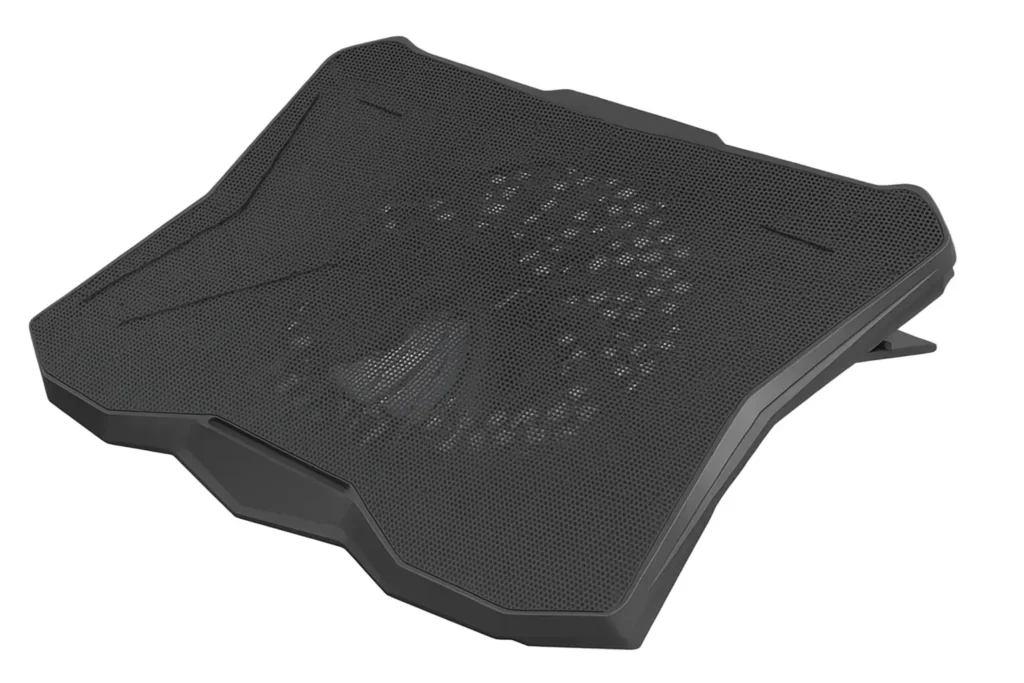
This zebronics laptop cooling pad fits laptops up to 17 inches. It has one large 170 mm fan that moves a lot of air. The big fan cools the laptop base fast so the laptop does not heat up badly. You pick the fan speed with a small controller dial. Use low speed for study and higher speed when you game. It runs from USB, so plug it into your laptop and it works without extra plugs. The pad also gives two USB ports so you do not lose a port.
The pad has adjustable height levels so you set a good angle for typing and viewing. A good angle helps your neck and keeps laptop vents open so air flows better. Soft rubber stops keep your laptop from sliding. The RGB lights look nice at night, and you can switch the lights off if you want quiet.
This unit runs very quietly, so it does not disturb classes or calls. The quiet fan and easy control make it great for students, writers and office users. It helps lower laptop temperature so the laptop’s own fan works less and stays calm.
The cable is detachable and easy to store in a bag. Setup takes seconds: place the laptop, plug the cable and set fan speed. Cleaning is simple and this pad gives good value for a low price. We recommend it for calm daily use.
| Specifications | |
|---|---|
| ❄️ Number of Fans | 1 Large 170mm Cooling Fan |
| ⚙️ Fan Speed Control | Manual Fan Speed Controller with On/Off Switch |
| 🔇 Noise Level | Silent Operation (Low-Noise Performance) |
| 💡 RGB Lighting | Multi-Color LED Lighting with Toggle Switch |
| 📏 Height Adjustment Levels | Multi-Level Adjustable Retractable Stand |
| 💻 Laptop Compatibility | Supports Laptops up to 17 Inches (43.18 cm) |
| 🏗️ Build Material | Durable Plastic and Metal Mesh Frame |
| 🔌 USB Ports | Dual USB Ports with Detachable Cable |
| ⚡ Power Source | USB Powered (Plug-and-Play) |
| 🌈 Special Features | Ergonomic Design, Silent Cooling, and Portable Lightweight Build |
| 🛡️ Warranty | 1 Year (Carry In) |
| Check Latest Price | |
| 👉 If today’s price feels good, grab it — you’ll thank yourself later! If not – no stress dear incredible you — just add it to your cart and check back soon. The best deals always find their way back to you. | |
| Note: Specs may vary — please check the retailer’s site before buying. | |
| Disclosure: As an Amazon Associate, we earn from qualifying purchases. If you buy through our links, we may earn a commission at no extra cost to you. | |
IETS GT500
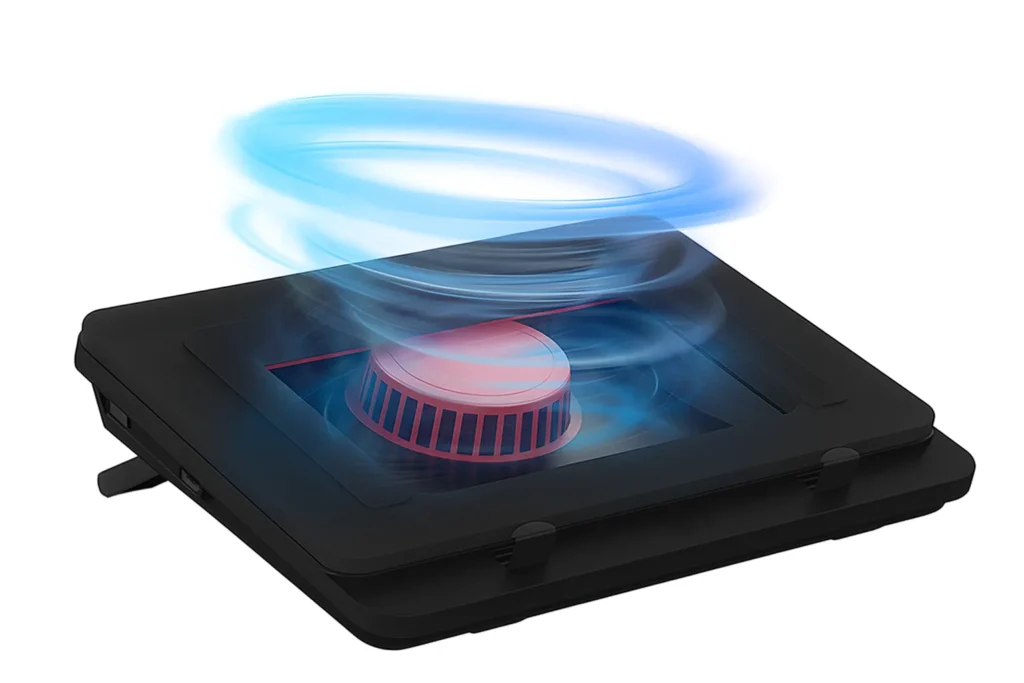
It uses a large industrial turbofan that spins up to 5000 RPM and sealed foam to push cool air under the whole laptop. This action gives 360 degree cooling so hot spots everywhere get fresh air. It works fast and drops temperatures quickly.
You can change the fan speed smoothly from zero to full with a dial. Use low speed for class or office work and ramp up for heavy gaming. The GT500 treats rear exhaust laptops by feeding cool air from the bottom so hot air does not flow back into vents. This design helps many gaming rigs run better.
The unit has a 1 in 3 out USB hub so you still keep ports free for mouse or phone. It runs from USB power and sits solid on a desk. Remember, this is a performance first pad: at full speed it makes more noise — up to 65 dB — so if you need silence, choose lower speed.
For people who want strong laptop temperature control and fast cool down, the GT500 is a tool that gives power, quick cooling and clear control. It feels like a pro helper for long sessions.
| Specifications | |
|---|---|
| ❄️ Cooling System | Industrial-Grade Turbo Fan with Sealed Foam Design |
| ⚙️ Fan Speed Range | 0 – 5000 RPM (Infinitely Variable Speed Control) |
| 🌬️ Cooling Coverage | 360° All-Directional Cooling with Bottom Air Intake |
| 🔇 Noise Level | Up to 65 dB at Maximum Speed |
| 🔌 USB Hub Configuration | 1 Input + 3 Output USB Ports (Independent Hub Module) |
| 💻 Laptop Compatibility | Suitable for 13″ – 17.3″ Laptops |
| 🌀 Fan Type | Single High-Pressure Turbo Fan |
| 🔥 Cooling Optimization | Eliminates Rear Exhaust Heat Backflow |
| 🏗️ Build Material | High-Density Plastic + Sealed Foam Construction |
| 🌈 Special Features | Industrial Cooling Performance, Adjustable Speed Dial, and Independent USB Hub Functionality |
| 🛡️ Warranty | No (You can extend but it will charge additionally) |
| Check Latest Price | |
| 👉 If today’s price feels good, grab it — you’ll thank yourself later! If not – no stress dear incredible you — just add it to your cart and check back soon. The best deals always find their way back to you. | |
| Note: Specs may vary — please check the retailer’s site before buying. | |
| Disclosure: As an Amazon Associate, we earn from qualifying purchases. If you buy through our links, we may earn a commission at no extra cost to you. | |
FourDot
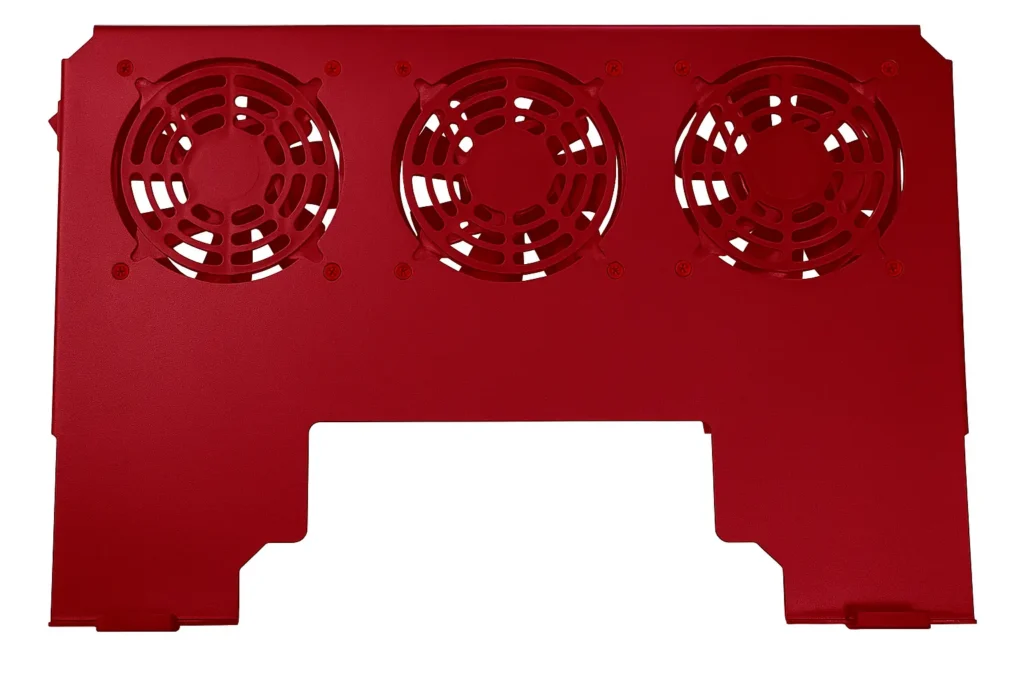
It uses a big steel body and a monster 92×38 mm fan that spins up to 5000 RPM. That means it moves a huge amount of air — up to 300 CFM — so heat goes away fast. When you play long games or run hard apps, this pad keeps the bottom cool and helps your laptop work better.
We like that you can change the speed with a dial. Turn it low for quiet work or high for full gaming. At top speed it is loud (around 60 dB), so pick speed by your need. It needs its own power adapter (not USB) because it uses serious power — that is why it comes with a 12V adapter. This design treats rear exhaust laptops well, so hot air does not flow back into vents.
FourDot adds anti slip pads so your laptop stays safe and does not scratch. The build is simple to open and clean, so you keep it working long. The fan uses a brushless motor and ball bearing for long life. If you want a no-nonsense airflow first tool, this gaming cooling pad pushes cold air like a small storm and gives fast cooling for big sessions. It’s for people who choose power over silence and want fast temperature control when it truly matters.
| Specifications | |
|---|---|
| 🌀 Fan Type | Industrial-Grade 92×38mm Brushless DC Motor Fan |
| ⚙️ Fan Speed Range | 0 – 5000 RPM (Adjustable via Speed Regulator) |
| 🌬️ Airflow Capacity | Up to 300 CFM (Controllable) |
| 🔇 Noise Level | 20 – 60 dB (Adjustable) |
| ⚡ Power Rating | 12V, 2.8–3A, 30–36W (with 12V 5A Power Adapter) |
| 🏗️ Material | Fully Steel Body with Finger Guards on Both Sides |
| 🔌 Connector Type | 5.5mm DC Jack (Not USB Powered) |
| 🔋 Cable Length | 3-Meter Power Cable (with 12V 5A Regulator) |
| 🌈 Special Features | Anti-Slip Pads, Easy Maintenance Design, On/Off Switch |
| 🌡️ Operating Range | Temperature: -10°C to 70°C |
| 🛡️ Warranty | 1 Year |
| Check Latest Price | |
| 👉 If today’s price feels good, grab it — you’ll thank yourself later! If not – no stress dear incredible you — just add it to your cart and check back soon. The best deals always find their way back to you. | |
| Note: Specs may vary — please check the retailer’s site before buying. | |
| Disclosure: As an Amazon Associate, we earn from qualifying purchases. If you buy through our links, we may earn a commission at no extra cost to you. | |
Note – Maybe you feel a little confused because all 6 cooling pads claim to be the best — and honestly, they all are in their own way. So do not overthink it, just see your work type and budget and pick the one that fits you best. You’ll make the right choice either way.
First 30 days setup and simple cooling pad maintenance checklist!
Unboxing checklist
Okay before you get excited and plug it in, just take two minutes to check everything. Look at the fan — it should move freely, not stuck. Check those small rubber pads under it, they stop your laptop from slipping. Make sure the ports are clean and the cable or adapter is inside the box. Try turning it on once to see lights or sound. That’s it — this small check saves you from any surprise later. Your fan and pad cooling system will thank you.
First use
Now, when you use it the first time, keep the fan speed in the middle. Just listen — it should sound soft, not rough. Place your laptop and see if it sits strong, not shaky. Feel if air is coming under your laptop. You will notice it getting cooler in a few minutes. Do not rush to full speed right away. This first test helps you understand how it works and how cool your laptop can stay every day with regular use.
Weekly cleaning
Once a week, give it two minutes of love. Turn it off, take a soft brush or cloth and clean the fan area. Blow some air to remove dust. Wipe under your laptop too, as dust blocks airflow. Tighten any loose screws if you see them. That’s all. This small weekly cleaning keeps your cooling pad strong and quiet. You will feel the difference in how smooth the air comes out and how easily your laptop stays cool for longer hours.
Monthly check
Every month, take a short look — check if those foam strips or rubber pads are still tight. If they look loose, press them back or replace them. Look at the cable too, make sure it is not bent or cracked. You can open the fan grill gently if needed and clean it from inside. These small monthly habits stop any problem before it starts. Your cooling pad will last longer and stay fresh, giving you stable cooling every single time.
If using Peltier cooling
If your pad has Peltier cooling, like EVOFOX, please use the right adapter it came with — not a phone charger. It needs strong power, about 15W. Place it where air can flow freely, do not block sides. One side gets hot, one side gets cold — that’s how it works. So, keep space around it. Always follow the brand’s small care guide. With good use, this cooling pad will keep your laptop safe, cool and working super fast for years.
Don’t Make These Mistakes to Feel Heavy Regret Later!
Mistake 1
Many people fall for those flashy RGB lights and glowing edges — they look cool and beautiful. Yes we agree this. But later they find their laptop still heating like before. Looks don’t cool, airflow does. Always check the fan speed (RPM), airflow (CFM) or if it says Peltier tech. The right cooling tech drops heat faster than any color light. Remember – performance matters more than show.
Mistake 2
Some cooling pads need more power than a simple USB port gives. If you buy one that runs on USB but needs an adapter, it won’t work well. You will get weak air or sudden fan drops. Always check the power type — USB only or external adapter. Many turbo or Peltier models need real 15W power to perform properly. A quick look at the specs saves a big headache later.
Mistake 3
Suppose you are sitting in a library or late night online class and your cooling pad sounds like an airplane. Awkward, right? Some models run at 5000 RPM and make real noise. Always check the dB number before buying. Go for under 30 dB if you study or record. Most pads let you lower fan speed to keep things cool and calm without that loud blowing sound.
Mistake 4
A common mistake — buying a pad too small for a big laptop. The corners hang out, airflow misses the hot areas, and cooling becomes useless. Before buying check the size it supports — like 15.6″, 17″ or 17.3″. Match it with your laptop size. This one small step gives full cooling and a stable base, instead of a half fit shaky setup that barely helps.
Mistake 5
Some laptops blow heat out from the back, some from the sides and some from the bottom. If your cooling pad pushes air the wrong way, it blocks the floww instead of helping it. Look for pads that match your laptop’s exhaust type. For rear exhaust models, bottom intake designs like IETS work best. Airflow direction sounds boring but it’s the real key to cooling performance.
Mistake 6
This one’s funny but real — people see more lights and think it cools better. Sorry, no. RGB only makes it look good, not cold. It’s just light, not air. What matters is airflow and fan strength. Always look at specs like airflow CFM or number of fans. RGB is nice for mood, but your laptop needs wind, not color, to stay chill during work or gaming.
Mistake 7
Cooling pads collect dust fast, especially near the fan. Once blocked, the air slows down and your laptop heats again. Some people forget to clean it for months. Pick a pad that has an easy clean dust filter or can be opened easily like llano models. Just two minutes of cleaning each week keeps your pad working like new. Dust is the silent killer of airflow. You should aware of this.
Mistake 8
Steel body pads like FourDot are beasts at cooling but they’re not fun to carry. If you move around a lot or use your laptop in hostels or cafes, go for lighter builds. Metal gives strong cooling but ABS plastic models are easy to pack and still good. Match your choice to your lifestyle.
Mistake 9
Cooling is fine but if your pad sits flat, your neck and wrists start hurting. Many forget to check height levels. Choose one with adjustable angles — 5 to 8 levels work great. It helps your posture and keeps air flowing under the laptop. A small tilt can turn long work hours into real comfort saving your back and giving better focus all day.
Mistake 10
Not every pad fits every use. For gaming or rendering, you need high airflow pads like turbofan or Peltier models. For casual use, simple 2 – 3 fan pads are enough. Match your work type to your pad type. If you don’t, you’ll either overspend or undercool. Picking smart once saves both time and laptop life — it’s not about brand, it’s about purpose.
Do not worry — all these points were shared just to make you aware before buying. You are already ahead of most buyers now. You can safely choose any of the six cooling pads we discussed above. They all are tested, practical and trusted options that truly keep your laptop cool and safe for long use.
Airflow & Speed — What Really Cools Your Laptop!
Air Movement (CFM)
When you hear CFM – it simply means how much air your cooling pad can push per minute. Higher CFM = more air = better cooling. It works like a mini wind machine that throws out the heat stuck inside your laptop. For example – a pad with 100+ CFM can keep even gaming laptops cool for long hours. So before you buy, always check the airflow number — it’s like checking your fan’s power level before a hot summer day.
Fan Speed (RPM)
RPM shows how fast your fan spins. More RPM gives stronger cooling but also more noise. Low RPM pads are quieter but may cool slower. So if you work in silence – choose under 2500 RPM. For gaming or editing – 4000 to 5000 RPM pads are perfect. Always match your cooling need and comfort level to the right fan speed.
Conclusion
Look – we all know that laptops do not suddenly stop working. They slowly die from heat, dust and our carelessness. If your laptop often gets hot or slows down, please do not ignore it.
You spent thousands on it — why let it go so soon when a laptop cooling pad can easily save its life? Think about it… spending a few now can save you from paying thousands later for repairs or a new device.
If you are still unsure which one to choose, just ask us in the comment box — we love helping our readers personally. And please, share this with your friends, classmates or even your office buddies. Everyone should know this big saving secret.
Always Remember – Care for your laptop today and it will care for your progress everyday.
FAQ
Do cooling pads really help laptop temps?
Yes they do. Cooling pads push extra air under your laptop helping it stay cool during heavy work or gaming. You will notice fewer lags, smoother performance and less fan noise from the laptop itself. It also keeps your lap or desk cooler when using the laptop for long hours.
Which cooling tech cools best: fans or Peltier?
Both work well, but for different needs. Multi fan pads spread cool air evenly — great for normal laptops or study use. Peltier pads (like EVOFOX) use a cooling plate that gets really cold — perfect for gaming or heavy rendering. Just remember, Peltier pads usually need more power to run properly.
Can a cooling pad harm my laptop?
Nooo not at all. Cooling pads only move air — they don’t touch internal parts. They actually help your laptop by keeping it from overheating. Just make sure to use them on flat surfaces and keep the fans clean – so dust doesn’t get trapped inside. It’s all benefit, no harm at all.
Do cooling pads work on beds or laps?
Yes, they do but flat surfaces work best. On a bed – make sure the fan area isn’t blocked by blankets. You can place a book or tray under it for stability. On your lap – choose a pad with anti slip pads or curved edges so it stays balanced while working or watching movies.
Is RGB useful or just for looks?
Mostly for looks. RGB lighting just makes your setup look cool, not your laptop. But it’s great if you game or work at night — it adds a vibe and helps you see the pad’s edges in the dark. If you don’t care for colors, you can always turn it off.
Keep your laptop cool and your goals hot — both will take you far.
If you are not familiar with the laptop cooler device term, you can also read this.

[ Author ] – Safdar Khurshid researches and evaluates consumer electronic gadgets, including smartphones, laptops, accessories, and everyday tech products, with a strong focus on long term usability, real world performance and buying mistakes people often regret later. His work is centered on helping readers understand trade offs clearly, so they know not just what to buy but also what to avoid.