


Table of Contents
Introduction
I feel buying a laptop today always feels confusing, not exciting. You see too many processors with almost the same names, Ryzen, Intel i5, i7, H, U, P and suddenly everything looks similar. Then comes more confusion, business laptops, gaming laptops, creator laptops, all mixed together, even under the same price. You end up asking one simple question, which one actually fits your real use.
This guide on laptops under 60000 exists to clear that confusion. It breaks down performance, daily use, long term value, and real world needs in simple words. Whether you want laptop for study, work, coding, editing or gaming, this article helps you choose wisely.
No hype, no specs overload, only practical clarity for budget laptops in India.
How I Evaluated This List
Real use case mapping
I never trust numbers alone. I match laptops with real daily work like online classes, office files, coding practice, video calls and light editing. Benchmarks do not show lag during meetings or heating in summer. For 60K laptops range, i check how the system behaves in our normal Indian home use.
Processor generation relevance
I focus more on processor generation than brand hype. A newer generation i5 or Ryzen 5 often works better than an old powerful chip. In 2026, software needs updated instruction support and efficiency. For budget laptops in India, i prefer CPUs that stay smooth for future updates, not just fast on day 1.
Thermal behavior awareness
Heating decides long life. I check how the laptop handles heat during long usage like classes, office work or coding sessions. Thin laptops with poor cooling slow down quickly. Under this price range, i pick models that manage temperature well, because thermal control protects performance and internal parts over years.
Display usability
Screen quality matters more than people think. I test brightness, viewing angles and text clarity. For students and office users, dull displays cause eye strain and mental tiredness. I prefer IPS panels that stay comfortable for long reading, writing and video calls without forcing eye breaks.
Port selection practicality
I look at ports from daily life angle. USB, HDMI, headphone jack and charging port placement should match real usage. Many laptops remove useful ports to look slim. I avoid that. For Indian users, practical port selection saves money on adapters and avoids frustration during presentations or external device use.
OS value
Operating system matters for long use. I check how well Windows or pre installed OS supports updates, drivers and security. A cheap laptop with poor OS support feels slow later. I choose laptops that handle updates smoothly and stay usable for study, work and daily tasks.
Mental fatigue
I also notice how the laptop feels after hours. Keyboard comfort, fan noise, palm rest heat and overall balance affect mental fatigue. A laptop may be powerful but tiring to use. I shortlist laptops that feel calm, stable and comfortable for long daily use, not stressful.
Top 5 laptops under 60K in India for students and working professionals
Lenovo V15 G4
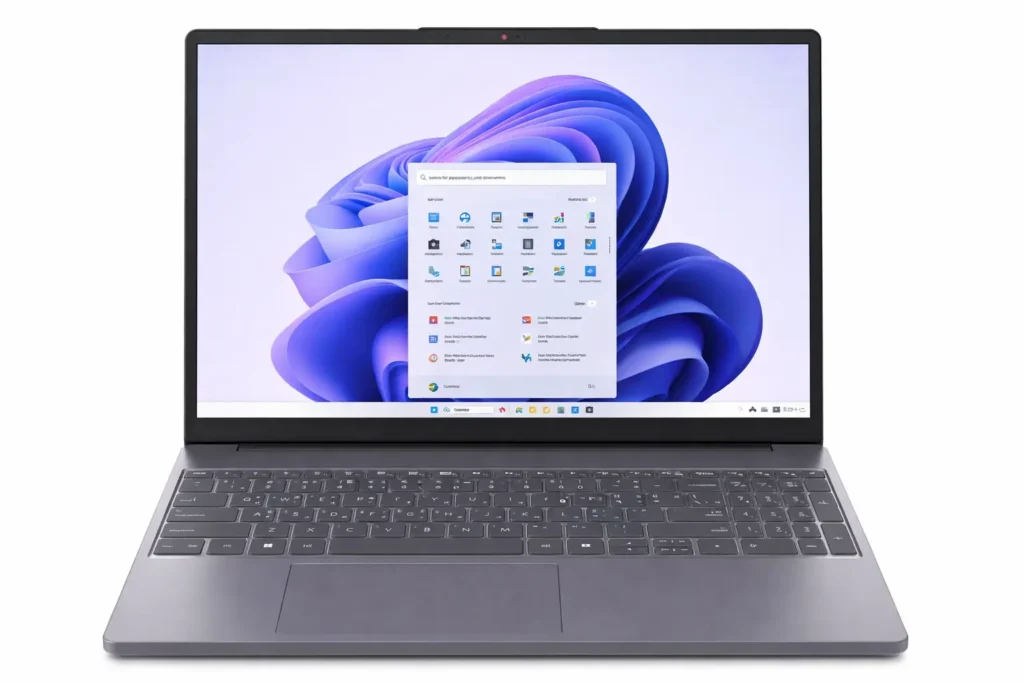
I see this model as a practical choice for people who want stable performance, not marketing hype. The 13th Gen i5-13420H focuses on real speed for office work, multitasking, coding, accounting and daily business tasks. Apps open fast and the system stays responsive even with heavy usage.
The 15.6 inch Full HD display gives enough space for spreadsheets and documents. The anti-glare screen helps during long work hours. I especially like the full keyboard with number pad, it feels useful for office and study work where typing never stops. Dolby Audio speakers stay clear for meetings and online classes.
With 16GB RAM and a fast 512GB NVMe SSD, this laptop handles daily workloads smoothly. WiFi 6, Ethernet, USB C, HDMI and the webcam privacy shutter make it ready for real office setups. Windows 11 Pro adds long term value for professional users.
Limitation
The TN display offers limited viewing angles and average brightness, so users focused on design work, photo editing or outdoor usage may find the screen quality slightly restrictive over time.
| Specifications | |
|---|---|
| 💼 Laptop Type | Business and productivity laptop |
| 💻 Processor | 13th Gen Intel Core i5-13420H, 8 cores, 12 threads, up to 4.6 GHz |
| 🖥️ Display | 15.6 inch Full HD 1920 x 1080, anti glare, 250 nits |
| 🎮 Graphics | Integrated Intel UHD Graphics |
| 💾 RAM | 16GB DDR4 memory |
| 🧠 Storage | 512GB M.2 PCIe NVMe SSD |
| 🪟 Operating System | Windows 11 Pro 64 bit |
| 📡 Connectivity | WiFi 6 802.11ax 2×2 and Bluetooth 5.2 |
| 🔌 Ports | USB 2.0, USB 3.2 Gen 1, USB C with DisplayPort and Power Delivery, HDMI 1.4b, RJ45 Ethernet, 3.5mm audio jack |
| ✨ Additional Features | 720p webcam with privacy shutter, Dolby Audio speakers, full keyboard with numeric pad |
| 🛡️ Warranty | Not Sure |
| Check Latest Price | |
| Check Latest Price | |
| Note: Specs may vary — please check the retailer’s site before buying. | |
| As an Amazon Associate, we earn from qualifying purchases. If you buy through our links, we may earn a commission at no extra cost to you. | |
Samsung Galaxy Book4 Edge
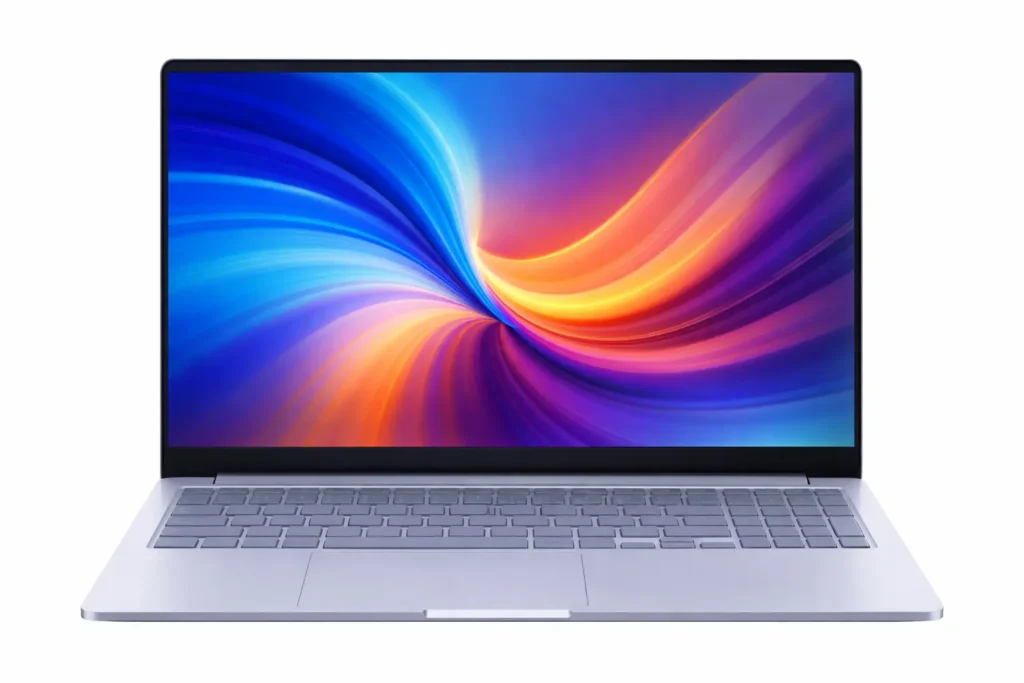
When I look at the Samsung Galaxy Book4 Edge, I see it as a laptop made for the next few years, not just today. From my experience tracking laptops in this range, this one feels different because it is built around efficiency, silence, and long daily use, not raw power chasing.
The Snapdragon X processor is the core reason. In normal use, browsing, office work, creative apps, meetings and background tasks, the system stays smooth and calm. I believe this laptop suits people who work long hours and want steady performance without fan noise or heat distractions.
The 15.6 inch Full HD anti glare screen works well for daily comfort. Text stays clear, reflections stay low and eye strain remains controlled during long reading or editing sessions. I feel this display is practical, not flashy which helps in real work situations.
With 16GB RAM and a fast SSD, multitasking feels reliable. Ports are thoughtfully placed, USB C, HDMI and microSD make daily connections easy. Wi Fi 7 and Windows 11 with Copilot+ AI make it feel future ready for professionals who want smarter workflows, not gaming focused hardware.
Overall, this laptop fits users who value stability, battery efficiency, and modern computing direction over traditional heavy performance machines.
Limitation
Some older Windows applications and software still show compatibility issues on Snapdragon processors, so users dependent on legacy x86 programs may need workarounds or alternative software options.
| Specifications | |
|---|---|
| 💼 Laptop Type | AI powered creator and business laptop |
| 💻 Processor | Qualcomm Snapdragon X X1-26-100, 8 core processor |
| 🤖 AI Performance | Up to 45 TOPS NPU performance |
| 🖥️ Display | 15.6 inch Full HD 1920 x 1080, anti glare panel |
| 🎮 Graphics | Integrated Qualcomm Adreno GPU |
| 💾 RAM | 16GB memory |
| 🧠 Storage | 512GB SSD |
| 🪟 Operating System | Windows 11 Home |
| 📡 Connectivity | WiFi 7 and Bluetooth support |
| 🔌 Ports & Features | 2 x USB C 4.0, 1 x USB A 3.2, HDMI 2.1, microSD card reader, 2MP camera, Dolby Atmos audio |
| 🛡️ Warranty | Not Sure |
| Check Latest Price | |
| Check Latest Price
| |
| Note: Specs may vary — please check the retailer’s site before buying. | |
| As an Amazon Associate, we earn from qualifying purchases. If you buy through our links, we may earn a commission at no extra cost to you. | |
HP 250 G10
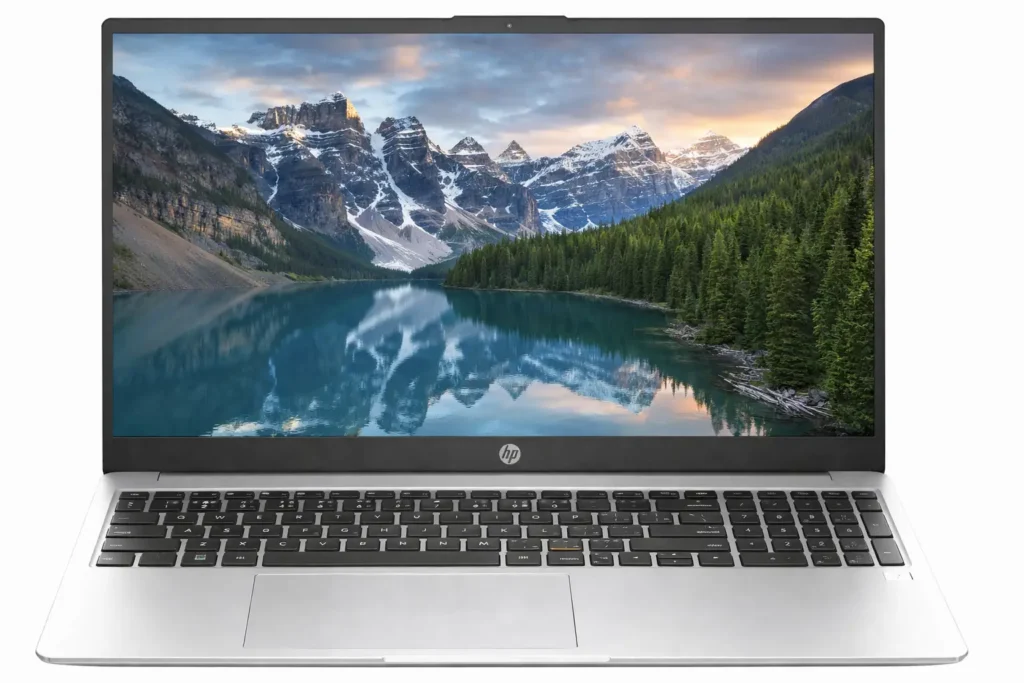
It’s a simple business laptop that does what it’s supposed to do. It’s made for working, not for showing off and that’s actually fine. The 13th Gen Intel Core i5 1334U processor is pretty solid. With 10 cores and 12 threads, it handles multiple tasks quite well.
You can easily run several browser tabs, Excel files, video calls and other apps together without the laptop slowing down. The 16 GB RAM is enough for regular work but remember it’s fixed and you can’t upgrade it later.
The 512 GB SSD is fast enough. The laptop starts quickly and apps open without much waiting. For everyday office work, it’s perfectly fine.
The 15.6 inch screen is okay. It’s clear enough for documents and spreadsheets. The anti glare coating helps when you’re working under tube lights in the office. But honestly, the colors look a bit dull, it’s not great for watching movies or editing photos.
The keyboard is nice, it has backlighting and even handles small water spills. The numeric keypad is really helpful if you work with numbers a lot. These small things actually matter when you’re using the laptop every day.
Port options are good. You get USB C, two regular USB ports, HDMI, LAN port and headphone jack. Most importantly, you won’t need to carry extra dongles everywhere.
Limitations
This is a budget laptop, so there are clear compromises. The screen colors are washed out, only 45% NTSC. If you’re used to good displays, you will notice it immediately. Battery life is just average. You’ll get maybe 4 to 6 hours of actual use. Forget about working the whole day without the charger. This is not a laptop for long train journeys without a power socket.
The body is mostly plastic. It’s not going to break easily, but it doesn’t feel premium either. It’s functional, that’s all. The biggest issue? RAM is soldered to the motherboard. Today 16 GB is fine but after 2 to 3 years when software becomes heavier, you’re stuck. You can’t upgrade it. This really limits how long you can use this laptop.
Who Should Buy This
This laptop makes sense for certain people like office employees who need a basic machine, students who want something reliable, small business owners buying multiple laptops or anyone who just needs a working laptop without spending too much.
If your work is mostly Excel, Word, emails, video calls and browsing, this will do the job well. The 1080p webcam is better than most laptops in this price range which is helpful for online meetings.
My Take
The HP 250 G10 doesn’t pretend to be something it’s not. It’s a simple, practical laptop that gets your work done. It won’t impress anyone or make you excited but it’ll work reliably for years. If you want something that just works without drama and fits your budget, it’s a sensible pick.
Just remember it’s basic. Don’t expect great battery life or vibrant colors. But for everyday office work, it’s honest value for money.
| Specifications | |
|---|---|
| 💼 Laptop Type | Business and productivity laptop |
| 💻 Processor | Intel Core i5 1334U, up to 4.6 GHz, 10 cores, 12 threads |
| 🎮 Graphics | Integrated Intel Iris Xe Graphics |
| 🖥️ Display | 15.6 inch Full HD 1920 x 1080 IPS, anti glare, 250 nits |
| 💾 RAM | 16GB DDR4 3200 MHz |
| 🧠 Storage | 512GB PCIe NVMe M.2 SSD |
| 🪟 Operating System | Windows 11 |
| 📡 Connectivity | WiFi 6 2×2 and Bluetooth 5.3 |
| 🔌 Ports | USB Type C with Power Delivery and DisplayPort, 2 USB Type A, HDMI 1.4b, RJ45, audio combo jack |
| ✨ Additional Features | 1080p webcam, spill resistant backlit keyboard with numeric keypad, 41Wh battery |
| 🛡️ Warranty | 1 Year |
| Check Latest Price | |
| Check Latest Price
| |
| Note: Specs may vary — please check the retailer’s site before buying. | |
| As an Amazon Associate, we earn from qualifying purchases. If you buy through our links, we may earn a commission at no extra cost to you. | |
MSI Thin A15
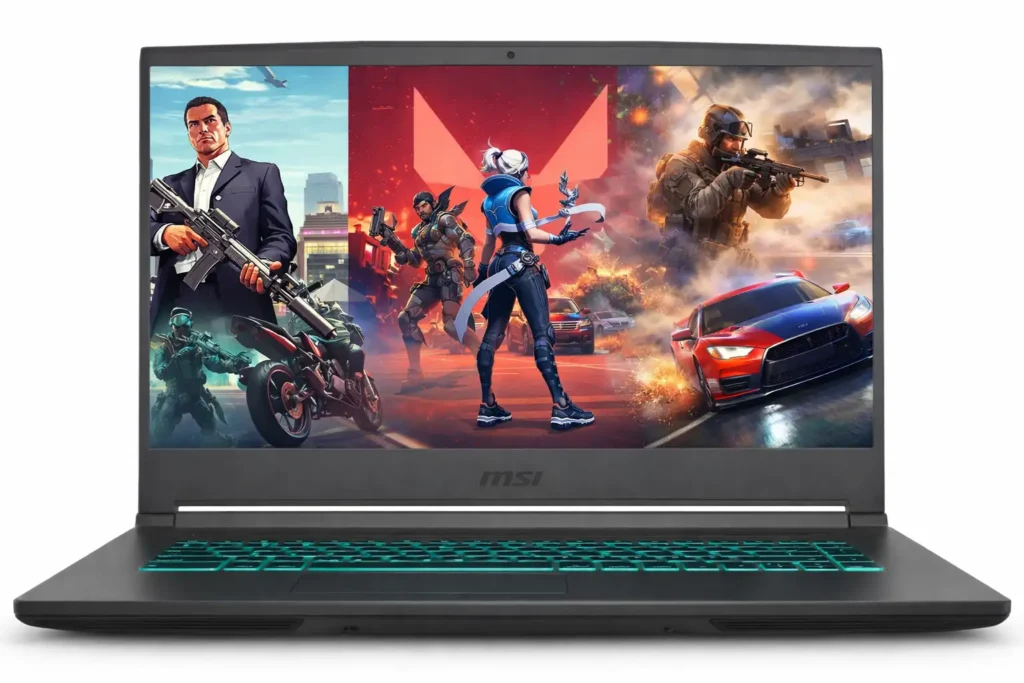
Look, i’ll be straight with you. Finding a proper gaming laptop under 60K is tough. Most options in this range either compromise too much on the GPU or give you outdated processors. The MSI Thin A15 actually manages to offer real gaming performance without completely destroying your budget and also having dedicated graphics card, that’s why I think it’s one of the finest gaming laptops you can get at this price point.
Why I Think This Works
The Ryzen 5 7535HS is a genuinely capable processor. It’s a 7th gen chip that goes up to 4.5GHz and in my opinion, this is where MSI made a smart choice. AMD’s 7000 series processors are efficient and powerful enough to handle modern games without bottlenecking the GPU. I’ve seen enough budget gaming laptops with weak processors and this isn’t one of them.
Now, the RTX 2050 with 4GB GDDR6, let me be honest here. It’s not a powerhouse. It’s an entry level gaming GPU. But here’s the thing: at this price, you’re not getting an RTX 4060. What the RTX 2050 does give you is ray tracing capability (even if you can’t max it out) and DLSS support which actually helps a lot in newer games. I think it’s a fair compromise for the price.
The 144Hz display is brilliant. I genuinely appreciate this. Even if you are playing esports titles like Valorant, CS2 or Dota 2, that high refresh rate makes a visible difference. The screen is FHD IPS level, though at 45% NTSC, colors are just okay, not great for content creation but perfectly fine for gaming.
The 16GB DDR5 RAM in dual channel configuration is excellent. MSI didn’t cheap out here. Dual channel makes a real difference in gaming performance and DDR5 future proofs this laptop to some extent. The 512GB NVMe Gen4 SSD is fast and your games will load quickly for sure and you have decent space, though serious gamers will probably need external storage eventually.
Where I Have Concerns
The RTX 2050 is going to struggle with AAA games at ultra settings. If you’re planning to play Cyberpunk 2077 or the latest Assassin’s Creed at maximum graphics, you’ll be disappointed. You’ll need to play at medium to high settings in demanding games to get playable framerates. For esports and older AAA titles though, it handles things well.
Battery life during gaming? Forget it. Maybe 3 to 4 hours of light use and barely an hour if you’re gaming unplugged. This is common with gaming laptops but i feel it’s worth mentioning that you’re basically tethered to the charger during gaming sessions.
The 720p webcam is honestly disappointing in 2025. If you’re attending online classes or meetings, the quality is just average. I wish MSI had put in at least a 1080p camera at this point.
Build quality is plastic heavy. At 1.86kg it’s reasonably portable for a gaming laptop, but it doesn’t feel premium. The single blue backlit keyboard is nice for gaming aesthetics, but the overall build feels like what it is: a budget gaming machine.
Port Selection is Actually Great
This is one area where i’m genuinely impressed. You get USB Type C with Power Delivery and DisplayPort, three USB A ports, HDMI 2.1 (which supports 4K at 120Hz) and even an ethernet port. For a gaming laptop, especially one at this price, this is really well thought out. You can connect multiple peripherals, an external monitor and wired internet without needing a hub.
Overall, if you mainly play competitive online games and some older AAA titles, this will serve you really well. The 144Hz screen makes competitive gaming genuinely enjoyable.
My Honest Take
This MSI Thin A15 is what I’d call an honest budget gaming laptop. It doesn’t promise what it can’t deliver. You’re getting real gaming capability, not flagship performance, but actual playable gaming at under 60K. That 144Hz screen and the Ryzen 7535HS processor give it an edge over similarly priced competition.
Will it run every new game at ultra settings? No. Will it last you 3 to 4 years playing all the latest releases? Probably not at high settings. But will it give you a proper gaming experience right now? Absolutely yes.
I think it’s one of the best value propositions in the budget gaming segment. Just go in with realistic expectations. This is entry level gaming done right, not a mid range beast pretending to be budget friendly.
| Specifications | |
|---|---|
| 💼 Laptop Type | Thin gaming laptop |
| 💻 Processor | AMD Ryzen 5 7535HS, up to 4.5 GHz |
| 🎮 Graphics | NVIDIA GeForce RTX 2050 4GB GDDR6 |
| 🖥️ Display | 15.6 inch Full HD 1920 x 1080 IPS level, 144Hz, 45% NTSC |
| 💾 RAM | 16GB DDR5 dual channel |
| 🧠 Storage | 512GB NVMe PCIe Gen4 SSD |
| 🪟 Operating System | Windows 11 Home |
| 📡 Connectivity | WiFi 6 802.11ax and Bluetooth 5.3 |
| 🔌 Ports | USB Type C Gen2 with DisplayPort and Power Delivery, 3 USB Type A Gen1, HDMI 2.1, RJ45 LAN |
| ✨ Additional Features | Single blue backlit keyboard, HD 720p camera, built in microphone, approx 1.86 kg weight |
| 🛡️ Warranty | 2 Years |
| Check Latest Price | |
| Check Latest Price | |
| Note: Specs may vary — please check the retailer’s site before buying. | |
| As an Amazon Associate, we earn from qualifying purchases. If you buy through our links, we may earn a commission at no extra cost to you. | |
Asus Vivobook 16
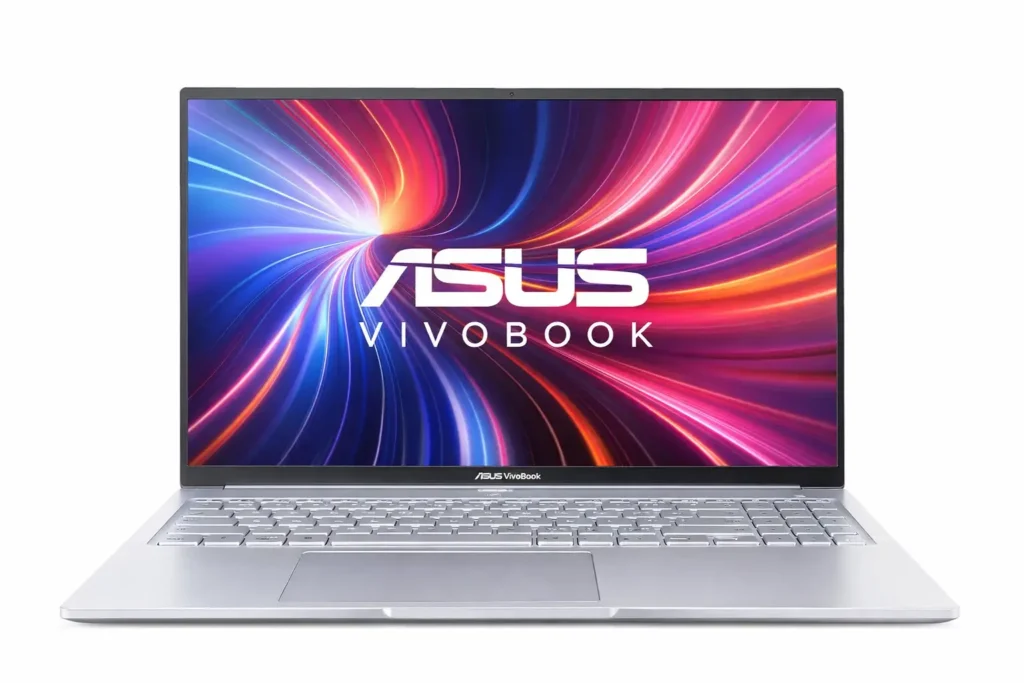
If you are a BCA student looking for a laptop that handles coding and college work properly, the Asus Vivobook 16 makes a lot of sense. I think Asus understood what students actually need. Intel Core i5 13420H is an H series processor, not those weak U series ones. With 8 cores and 12 threads going up to 4.6GHz, it handles coding really well.
Running Android Studio, VS Code, multiple Chrome tabs and YouTube together? It manages fine. I’ve seen students struggle with weaker processors, you won’t face that here. 16GB DDR4 RAM is enough for programming. Virtual machines, Docker, heavy IDEs like IntelliJ, all run smoothly. 512GB NVMe SSD is fast and gives decent space for projects and software.
The 16 inch display is actually really useful. More screen space means you see more code without scrolling constantly. The 16:10 aspect ratio gives extra vertical space which helps a lot when reading documentation or writing long code. At 300 nits with anti glare, it’s comfortable for extended use.
The backlit keyboard with numpad helps during late night coding. The keyboard is comfortable for typing assignments and code for hours. You get Microsoft 365 for 1 year plus Office Home 2024 permanently. Word, Excel, PowerPoint are included which saves you money for assignments and documentation.
What’s Missing
– Integrated Intel UHD Graphics means no gaming or video editing. This is only for study and work.
– The 60Hz display is standard. Fine for everything except gaming which this laptop isn’t meant for anyway.
– Battery gives maybe 5 to 6 hours of regular use. Carry the charger to college.
– The plastic body feels okay, nothing special. But at this price, it’s completely reasonable.
My Honest Opinion
This laptop does what BCA students need. The processor handles development tools well. The bigger screen makes coding easier on your eyes. Office is included.
For attending classes, coding assignments, college projects and regular studying, it works reliably. If you need a laptop that gets you through 3 to 4 years of BCA without issues, this is a practical choice. The 16 inch screen alone is worth it compared to smaller options at similar prices.
| Specifications | |
|---|---|
| 💼 Laptop Type | Thin and light performance laptop |
| 💻 Processor | Intel Core i5-13420H, up to 4.6 GHz, 8 cores, 12 threads |
| 🖥️ Display | 16 inch WUXGA 1920 x 1200, 16:10 aspect ratio, 60Hz, 300 nits |
| 🎮 Graphics | Integrated Intel UHD Graphics |
| 💾 RAM | 16GB DDR4 |
| 🧠 Storage | 512GB M.2 NVMe PCIe 4.0 SSD |
| 🪟 Operating System | Windows 11 Home |
| 📦 Pre-Installed Software | Microsoft 365 Basic 1 Year with 100GB Cloud + Office Home 2024 lifetime |
| ⌨️ Keyboard | Backlit Chiclet keyboard with numeric keypad |
| ✨ Display Features | Anti glare panel, 16:10 productivity screen ratio |
| 🛡️ Warranty | 1 Year |
| Check Latest Price | |
| Check Latest Price
| |
| Note: Specs may vary — please check the retailer’s site before buying. | |
| As an Amazon Associate, we earn from qualifying purchases. If you buy through our links, we may earn a commission at no extra cost to you. | |
Setup guide for first 7 days
OS update order
It’s unboxing day or day 1 (excitement vibesss), connect your laptop to Wi Fi and complete all Windows updates before installing anything else. These updates fix early system bugs, improve stability and often optimise battery usage. If you skip this step, you may face random issues later. Finishing OS updates first gives you a clean and stable base which is especially important when you are setting up a laptop for long term use.
Driver update sequence
After windows updates finish, do install drivers in the correct order. Start with chipset drivers, then graphics, followed by wifi, bluetooth, audio and touchpad drivers. Installing drivers randomly may cause heating, lag or display problems. When you follow the right sequence, your laptop runs smoother, uses power efficiently and delivers consistent performance.
Battery calibration
During the first week, calibrate your laptop battery once or twice. Charge it to 100%, then use it normally until the battery drops close to 15%. Do not repeat this frequently. Calibration helps your system show accurate battery percentage and backup time. This allows you to understand real world battery performance and plan charging habits better for regular office or student use.
Storage organization
Set up your storage properly from the beginning. Keep windows and software on the main drive and create separate folders for documents, study files, media and backups. Avoid filling the SSD too much, as performance drops when storage is almost full. A clean storage layout keeps your laptop fast over time and helps you manage limited storage.
Display scaling adjustment
Check display scaling and resolution on the first day. If text looks too small or blurry, adjust scaling to match your screen size and viewing distance. Correct scaling reduces eye strain and makes reading, typing and coding more comfortable. When you tune display settings properly, you get better clarity and productivity, especially on full HD screens common in laptops.
Power profile setup
Choose the right power mode based on how you use your laptop. Use balanced mode for daily work and study and switch to performance mode only during heavy tasks. Avoid running performance mode all the time. Proper power settings control heat, reduce fan noise and improve battery backup, helping your laptop stay reliable and comfortable for the long term use.
Long Term Maintenance Tips
Thermal care
Heat slowly reduces laptop life, even if you do not notice it daily. You should keep air vents clean, avoid using the laptop on beds or soft cloth and give airflow space from below. Once in 6 months, basic internal cleaning helps a lot. For people searching how to prevent laptop overheating in long use, simple habits matter more than cooling software.
SSD health awareness
SSD does not fail suddenly like old hard disks, but it weakens silently. You should avoid filling storage fully, always keep at least 20 percent space free. Do not install unnecessary software. Occasional restart helps background processes reset. If you search how to maintain SSD performance for years, controlled usage and clean storage habits work best.
Battery longevity habits
Battery life depends more on charging style than brand. You should avoid draining battery to zero daily. Try keeping charge between 20 and 90 percent during regular use. Do not keep laptop plugged in all day without breaks. If you are one of those wants increase laptop battery life long term, always remember this: disciplined charging gives real results.
Keyboard and hinge care
Keyboards suffer from dust, food crumbs and rough usage. You should clean keys gently with a soft brush, avoid eating while typing and close the lid carefully every time. Hinges break slowly due to careless handling. If you look for laptop hinge durability tips, slow movement and clean usage protect the structure.
Safe charging practices
Charging safety decides motherboard life. Always use original charger or a certified replacement. Avoid cheap extension boards with voltage fluctuation. Do not charge laptop on unstable power sources. Let the adapter cool after long use. People always often ignore basics but stable power keeps internal parts healthy for years.
Who should NOT buy these laptops?
Heavy AAA gamers
Dear, you should not go with these laptops if your main goal is playing modern AAA games at high or ultra settings. Budget laptops usually rely on integrated graphics or entry level GPUs. To be very honest, you may face low frame rates, thermal throttling and reduced visual quality.
If you expect smooth gameplay in demanding titles for long sessions, you will feel limited and frustrated very quickly. By the way, you can go with MSI Thin A15 because as discussed above, it has dedicated graphics card.
Professional video editors
You can avoid these laptops if you work with heavy video timelines, 4K footage or advanced colour grading. Budget processors and limited GPU power struggle with rendering speeds and export times.
You may experience lag during previews and delays during final output. If video editing is your primary income source, investing in a higher performance laptop will save time, effort and long term productivity losses.
3D rendering users
You should not choose these laptops if you regularly work with 3D modelling, animation or rendering software. Tasks like real time previews, complex textures and final renders demand strong GPUs and high sustained performance. Entry level hardware found in this range cannot handle such workloads efficiently. You may face crashes, long render times and workflow interruptions that make professional 3D work impractical.
Users expecting MacBook level battery
Again, you should avoid if you expect all day battery life similar to premium ultrabooks. Most laptops under this budget range deliver moderate backup that depends heavily on usage and power settings. Continuous browsing, meetings or media work may still require mid day charging. If long unplugged usage is your top priority, these laptops may not meet your expectations.
Online vs offline buying
Config availability
When you buy online, you usually get more configuration choices in the same price range. You can compare RAM, storage, processor variants and even colour options without depending on local stock. Offline stores often push what they already have. Online platforms let you pick the exact configuration that matches your work or study needs which matters a lot when you are buying a laptop with limited upgrade headroom.
Return safety
Online buying gives you a clear return window that protects you after delivery. If you notice defects, performance issues or receive a wrong configuration, you can request a replacement without arguments. Offline purchases rarely offer this flexibility once the box is opened. Knowing you have return safety reduces stress and lets you test the laptop properly at home before fully committing to long term use.
Price transparency
When you shop online, pricing is visible and comparable across multiple sellers. You can track discounts, bank offers and seasonal price drop easily. Offline pricing often varies from store to store and may include hidden margins. Online platforms help you understand what you are paying for and whether the deal makes sense.
Manufacturing date clarity
Online listings usually mention manufacturing month and year or you can verify it through customer questions and reviews. This helps you avoid older stock with reduced battery health. Offline stores may not always disclose this clearly. When you buy online, you have better control over checking freshness which is important for laptops where battery and internal components degrade over time.
Software license authenticity
Buying online reduces the risk of pre activated or modified software. You receive a sealed unit with a genuine Windows license linked directly to the device. This ensures proper updates and long term security.
Offline setups sometimes include manual installations that are hard to verify later. A clean, factory sealed laptop gives you confidence about software authenticity and system stability.
Online reviews
Online reviews help you understand real world performance beyond specifications. You can learn about heating, battery backup, keyboard comfort and long term reliability from actual users. This practical insight is difficult to get in a store demo. Reading multiple reviews helps you balance positives and negatives, making online buying a more informed and confident decision.
My Personal Opinion
As someone who reviews electronic gadgets regularly, i believe value comes from understanding limits, not chasing specs. When you choose with clarity, these machines handle daily work smoothly. Prioritise thermals, display comfort and stability over flashy claims. A well judged purchase feels reliable every day, ages gracefully and rarely make you question the decision later.
Conclusion
Always remember… you have to live with your laptop for years. Your daily comfort, battery habits, thermals and screen quality matter far more over time than headline specifications. If you align your expectations with how you actually work or study, you can choose confidently and avoid regret later.
The current market offers many capable laptops under 60000 that deliver reliable everyday performance when selected wisely. If this guide helped you think clearly, share it with someone who is also confused about picking.
And if you still feel unsure or stuck between options, drop your question in the comments. A clear decision always starts with the right discussion.
FAQs
When expectations are clear, satisfaction becomes natural.

[ Author ] – Safdar Khurshid researches and evaluates consumer electronic gadgets, including smartphones, laptops, accessories, and everyday tech products, with a strong focus on long term usability, real world performance and buying mistakes people often regret later. His work is centered on helping readers understand trade offs clearly, so they know not just what to buy but also what to avoid.